其它相關的驅動方法及Bootcamp的程式解開的方法..我貼上原文....應該不難啦.英文不太好.不太會翻..

Extracting the Drivers
1. Create a folder on the Vista desktop called drivers. Load and open the DVD/CD you burned and copy and paste the exe file found on the disk to the drivers folder on your desktop.
2. Open up Command Prompt by typing cmd in the new Windows Vista search/start bar in the Start Menu.
Once open, type cd Desktop\drivers
Nothing will appear to happen, but now type "Install Macintosh Drivers for Windows XP.exe" /A /v
在command的時候打"Install Macintosh Drivers for Windows XP.exe" /A /v
然後會出現跟之前的安裝程式一樣,只是會問你要解在那裡...就給它一個資料夾放囉..
It will take a second for the security prompt to open and when it does click ok and it will proceed to extract the drivers into the folder on the desktop.
Installation of drivers
The process set out below will need you to "right-click".
If you're on a MacBook/Pro, try this utility to temporarily allow use of right-click without proper track pad drivers.
Installation of the Apple Keyboard Program - Easy
Go to the drivers folder you created and navigate to: program files\macintosh....drivers\Apple Keyboard\
Run the Setup.exe found it that folder. This will install the keyboard and on next boot it will recognise all the keys.
Installation of the Audio Card - Easy
Go to the same folder as indicated above: program files\macintosh...drivers\SigmaTel and again run setup.exe.
Installation of the Built-In iSight and WiFi - Intermediate
iSight
Launch the control panel and get into the device manager. Once you have done this go to sub-category called "Imaging Devices". Hopefully there is only one item in the list. Right click the item and select "Update Driver Software". Manually install the driver by choosing "Browse My Computer For Driver Software" also tick "Let Me Pick From a List..." and tick "Have Disk". Now navigate to the drivers folder on your desktop and find the inf in the program files\macintosh...drivers\iSight folder. Install the driver. It should work correctly after this. You may need to install it twice or just tweak and play around.
WiFi
While in the device manager, navigate the the category for network devices. Select the device with the exclamation point on it. If thereis more than one do the same remedy for each individually. Right-click on the device and chose "Update driver". From here it is easier to simply direct Windows to the drivers folder and allow it to search for the best drivers and allow it to install any 'unsigned drivers'.
這個我升級之後自己就抓到了
Install full Track pad functionality - Intermediate
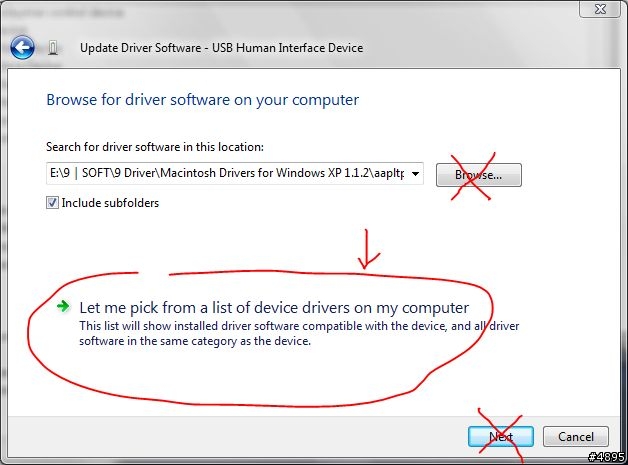
Go to the device manager and under the Human Interface Device section and disable the various "USB Human Interface Devices" until the trackpad stops working. Once you find which one it is, re-enable it, then upgrade the driver by forcing it (by manually selecting the driver, don't let it auto-find the right driver) to use the driver in the drivers folder named "aapltp".
Next, you need to upgrade the trackpad mouse driver. Go to the Mouse section in device manager. Again, find out which driver refers to the Trackpad by selective disabling, then force a manual upgrade of the driver using the driver in the Boot Camp "aapltctp" driver directory.
The above will give you 2-finger right-clicking and scrolling with the trackpad.
這個我怎麼試都試出不來.只有抓到一個track pad filther
Installation of the Bluetooth Drivers - Hard
In device manager go to the USB devices and select the item in an order that you
Once you've found it, manually install the driver as you did for iSight and direct Windows to the drivers folder\program files\macintosh...drivers\BthKicker
After the driver is installed Vista will create a new device automatically install a bluetooth driver for the new device.
這個上面寫說比較難..因為我沒在用Bluetooth,所以還沒試~
Installation of the Brightness Controller Program - Hard
This will allow use of fn+F1 or fn+F2 to control the screen brightness just like in Windows XP.
Go to the drivers folder, but this time navigate to sub-folder System32. Copy and Paste Brightness.exe to C:\Windows\System32. It will prompt two or three times to confirm the paste.
Now right-click on Brightness.exe and select properties. Select the tab called "Compatibility" and tick the "Run this program in compatibility mode" also chose "Windows XP Service Pack 2". You must also tick "Run this program as administrator". Click Apply, double check to make sure the settings are correct, then click OK.
Right-click on Brightness.exe again, and create a shortcut. It will say that it cannot create it in the System32 folder and will place it on the desktop instead. Unfortunately Windows Vista requires authorisation to run any application that isn't "signed and certified", therefore simply placing it in the "start-up" folder on the start menu may not work. Until you've rebooted and established that it will indeed auto-load by placing a shortcut in the "start-up" folder, I'd leave another shortcut on the desktop and manually run it as needed.
Alternative to Boot Camp Keyboard and Brightness drivers
There is a wonderful Input Remapper available over at Insanely Mac. This nice little program essentially gives you all the Function key functionality available in OS X (F1 and F2 Screen Brightness, F3 Mute, F3 and F4 Volume Down and Up, F6 Num Lock, F8 - F10 Keyboard Backlighting controls, F11 and F12 Media Playback controls, CD Eject.
目前來講裝起來都還OK,因為我的是前代的MacBook,所以只裝32bit的版本.至於64bit的.我想目前應該是無解吧,這些driver應該都是for 32bit的...不然就有c2d的大大再試看看囉..應該intel base的Mac Machine都可以用吧



 使用的時間似乎比較短..沒有特別測試..只是感受到那個熱量跟風扇的聲音就會這麼覺得...